Your task list
One shared list for everything that isn't an appointment — adding one, working through it, and the one thing about the order that catches people out.
3 min readUpdated August 16, 2026
Every salon has a handful of things that aren't appointments and aren't messages. Chase the supplier. Ring the client whose colour went wrong. Order more foils before Saturday. They live on a sticky note, or in somebody's head, and both of those go home at six.
Tasks is the list they go on instead. Open Apps → Tasks.

Adding one
- 1
Press New task.
- 2
Type what needs doing. That's the only required field — a task with just a title is a perfectly good task, and making people fill in five boxes is how a shared list quietly stops being used.
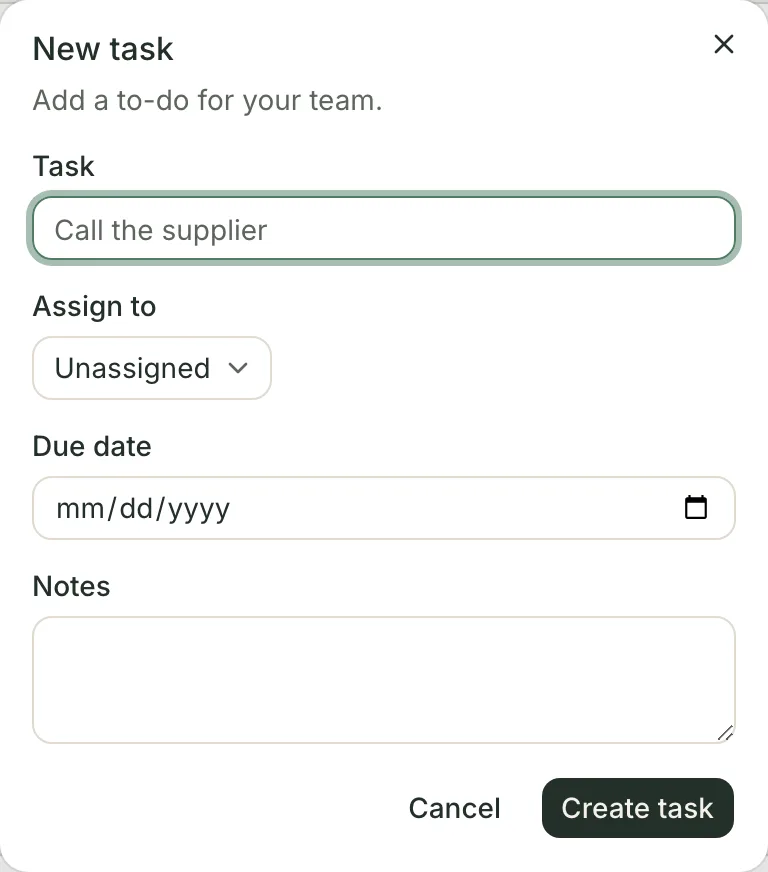
Only the first field is required. Everything else is optional on purpose. - 3
Fill in whatever else helps. Assign to puts somebody's name on it; Due date records when it's wanted; Notes is for the detail that doesn't fit in a title — the reference number, what the supplier said, what you promised.
- 4
Press Create task.

Leaving it unassigned is a normal state, not an oversight. Plenty of jobs belong to whoever gets there first, and forcing a name onto them just means the wrong name.
Working through it
Two tabs, Open and Completed. There's no "all" — anything still to do is on the first tab, and that's the one to work from.
Each row has two buttons on the right:
- The tick completes it. It moves to Completed, with the title struck through, and the salon has a record that it was done.
- The bin deletes it. That is immediate and permanent — no trash, no undo. If you're not sure, complete it instead.
On the Completed tab the tick becomes an arrow, which reopens the task and puts it back on Open.
The bit that catches people out
The list is newest-first, and nothing else affects the order. A task due this afternoon sits below one created ten minutes ago and due next month. Overdue tasks are not highlighted, moved, coloured or counted anywhere.
That is worth knowing before you build a morning routine around it. Tasks works well as a shared memory — this needs doing, here's the detail, here's who has it — and it does not work as a schedule. If something has to happen at a particular time, it wants a place in the calendar, not a row here.
The other thing to say plainly: assigning a task notifies nobody. No email, no text, no badge on their screen. The person finds out because they look. In a small team that's usually enough; if it isn't, say it out loud too.
Who can use it
Anyone who can use your Inbox can use Tasks — the two share the same permission, so there's nothing extra to switch on for a new starter, and no way to give somebody tasks without also giving them your client conversations.
Common questions
Does someone get told when I assign them a task?
No. There's no notification, no email and no badge — they find out by opening the list. If it genuinely can't wait, say it out loud or send them a message as well.
Why is a task due today sitting below one due next month?
The list is newest-first, always. Due dates are recorded and shown, but they don't move a row up, and nothing goes red when it's overdue. Treat the due date as a label rather than a sort.
Can I see only my own tasks?
Not from this screen. Everyone sees the whole salon's list, and the assignee's name on each row is what tells you whose it is.
What happens if I reopen something by mistake?
Reopening clears who completed it and when. It doesn't archive that information anywhere — so if you need the record of who did it, don't reopen it.
I deleted the wrong task.
It's gone. Delete is immediate and permanent, with no trash and no undo. If you're unsure, complete it instead — a completed task is still there on the Completed tab.
Can a task repeat every week?
No. Each task is created once. A flow can create one every time something happens to a client, which covers "whenever X" but not "every Monday".
Are these the same as the tasks in Time clock?
No, and it's a genuinely confusing overlap. Time clock task types are categories of time — Lunch, Training, Admin — that staff pick when clocking in. They share a word with this screen and nothing else.
Related articles
- Where tasks come fromTasks · Four things put a task on your list, and two of them are the product telling you about money you're about to lose.
- Getting around the inboxInbox · One list, one thread, one client card. How to read the list at a glance and tell instantly which conversations still need something from you.
Can’t find what you’re looking for?
Book a 20-minute walkthrough and we’ll answer it on a screen share — or start free and try it on your own salon’s data.