Create an offer
A discount written down as rules — what comes off, how it reaches a sale, when it runs, and the Enable switch that actually turns it on.
3 min readUpdated August 16, 2026Managers
Tuesdays are slow, and you've decided 20% off colour is the fix. An offer is that decision written down as rules: what comes off, which sales it can touch, and when it stops. Once the rules exist, the till does the remembering — nobody at the front desk has to keep a promotion in their head.

Offers live under Marketing → Offers, a managers' area. Applying one to a bill happens at checkout and is covered in Use an offer at checkout.
Creating one
- 1
Press New offer. Everything fits in one drawer.
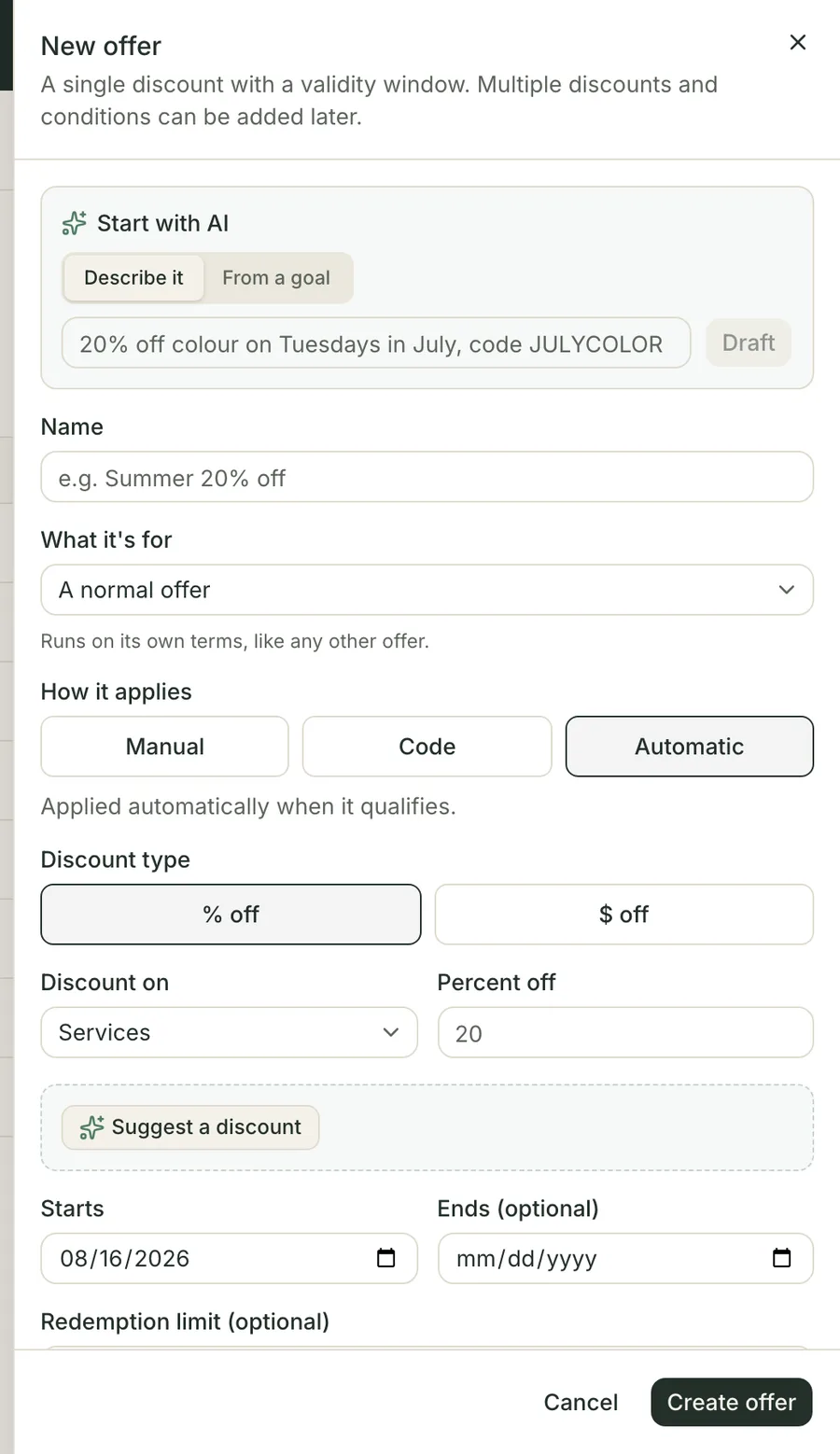
One drawer holds the whole offer. Creating it is not the same as switching it on. - 2
Name it. The name is what staff pick from at the till and the reason printed against the discount on the bill — "Welcome 10% off" reads better there than "PROMO2".
- 3
Say what it's for. Leave it on A normal offer unless you're building the thank-you for referral rewards — that one choice is what puts an offer in the referral picker, and it can only be made here, when the offer is created.
- 4
Choose how it applies. Manual waits for staff to pick it. Code gives it a promo code clients can type into online booking — staff can still pick it at the till, where the code works as a label. Automatic applies by itself whenever the sale qualifies.
- 5
Set the discount — a percentage or a dollar amount, off Services, Products, or the Entire sale. A whole-sale discount is always a fixed dollar amount, so what leaves the till is never a surprise percentage of a bill you hadn't seen yet.
- 6
Give it a window and a budget. Starts today unless you say otherwise; leave Ends blank and it runs until you stop it. Redemption limit caps how many sales can ever use it — "first 100" is a promotion, an uncapped 25% is a pricing change.
- 7
Press Create offer, then — on the list — Enable it.

That last step is the one that gets missed. A new offer is a Draft: visible to you, invisible to checkout. Enabling is deliberately separate so you can build next month's promotion today without it leaking onto today's bills.
The life of an offer
The status chip does the bookkeeping for you. An enabled offer whose window hasn't opened shows Scheduled; inside its window it's Active; in its last week it turns Expiring; after the end date, Expired. You never edit those — they follow the dates, and checkout checks the dates themselves, so an expired offer won't apply even if the chip is a day behind.
Disable pulls an offer from the till immediately without losing its history. Delete removes it and frees its code for next season; sales that already used it keep their discount.
Was it worth it?

Open the offer and the top line answers in three numbers: how many sales used it against its cap, the discount given, and the revenue on the lines it discounted. Brief me turns those into a written read of what's driving redemptions; Check overlaps warns when two live offers could double-discount the same items on the same dates. For the long view, the Offers summary and Offer usage reports sit in Reports.
Common questions
I created an offer and it isn't at the till. Why?
It's still a draft. A new offer starts as Draft and stays invisible to checkout until you press Enable — on its row menu or its own page. This is the answer nine times out of ten.
Can I take a percentage off the whole bill?
No — a whole-sale discount is a fixed dollar amount. Percentages work on services and products, where there's a price to take the percentage of.
What counts against the redemption limit?
Sales, not lines. An offer that discounts three services on one bill has used one redemption, not three.
Can I reuse a code from last season?
Once the old offer is deleted, yes. A code belongs to one offer at a time; deleting the offer frees its code, and the history of sales that used it stays put.
Do I have to spell the code in capitals?
No. Codes are stored in capitals and matched without caring about case — a client typing welcome10 gets WELCOME10.
Related articles
- Use an offer at checkoutOffers · Putting a discount on the bill, the code a client typed when they booked, and how to read the message when an offer refuses to apply.
- Change a price or give a discountSales · Charging something other than the list price — a one-off adjustment, a percentage off, or a goodwill gesture — and leaving a reason behind it.
- Send a campaignCampaigns · One message to a group of clients — building it, checking it, and choosing between sending it now and scheduling it.
Can’t find what you’re looking for?
Book a 20-minute walkthrough and we’ll answer it on a screen share — or start free and try it on your own salon’s data.