Turn web chat on
One checkbox puts a chat bubble on your website, and three short messages decide what a visitor reads before anyone has answered.
3 min readUpdated August 16, 2026Owners · Managers
Somebody is on your website at eleven at night wondering whether you do balayage. They are not going to phone, and a contact form is a message they send into the dark.
Web chat is a bubble in the corner of your own website. A visitor taps it, types, and the conversation lands in your Inbox next to your texts and emails. They do not sign up, and they do not have to say who they are.
Turning it on
Settings → Web chat is one checkbox and a card of messages.
- 1
Open Settings → Web chat.
- 2
Tick Enable web chat. It saves as you tick it — there is no Save button on this card, because a half-configured chat bubble is worse than none.
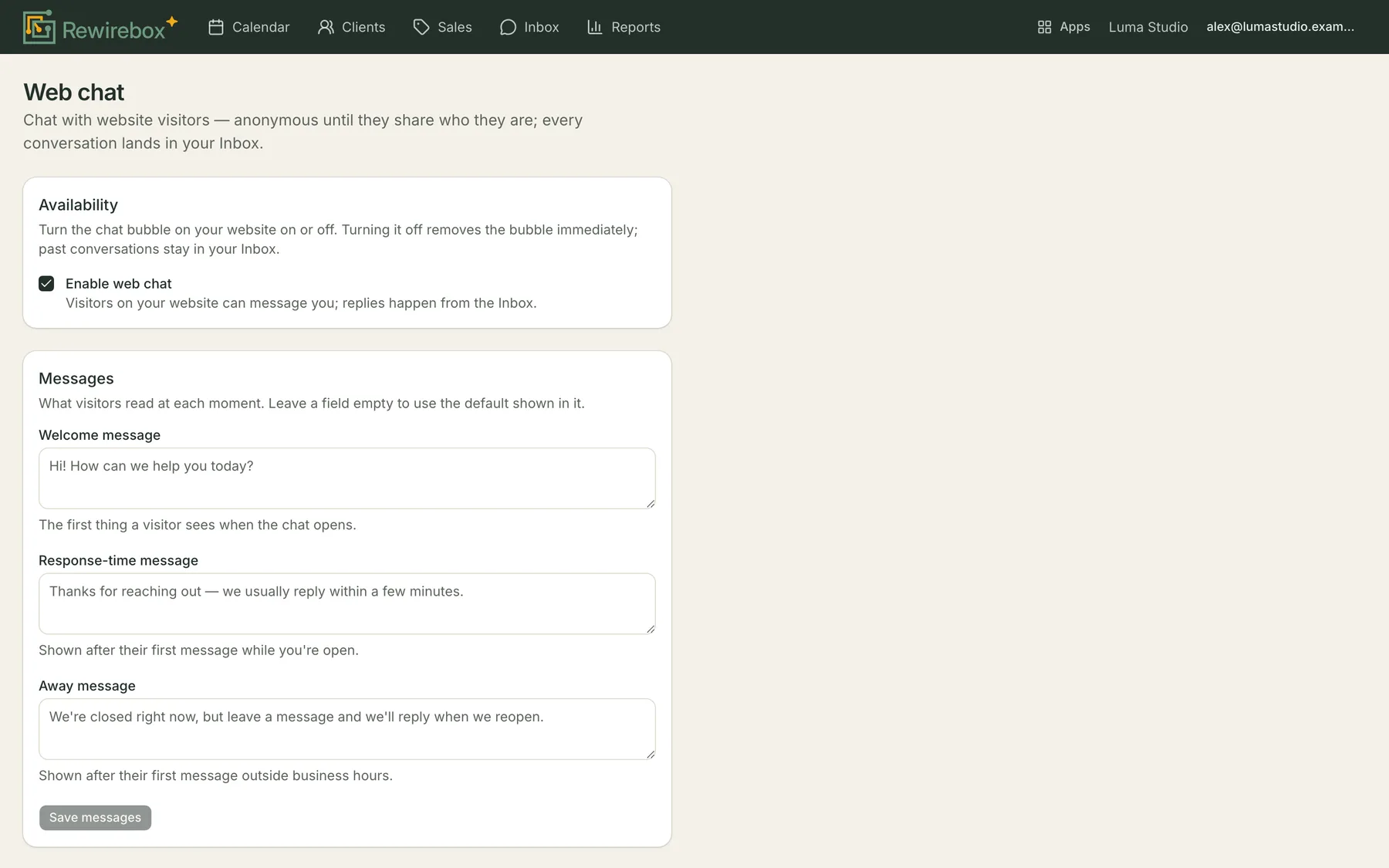
The switch, and the three things a visitor reads before a human does. - 3
Read the three messages, and change any that don't sound like you. Leave one empty and the grey wording inside it is what visitors get.
- 4
Press Save messages. The message boxes save together and only when you ask — nobody wants half a sentence going live on their website while they're still typing it.

That's it for the salon side. Getting the bubble onto your actual website is one script tag, and if you already added the booking widget you've done it.
The three messages
They are not decoration. Each one covers a different moment, and the difference between them is whether you are open.
- Welcome message is the first thing in the panel, before the visitor has typed anything.
- Response-time message appears under their first message while you're open. This is where you set an expectation you can keep: "we usually reply within a few minutes" is a promise, and a slow Saturday will hold you to it.
- Away message appears under their first message outside your business hours — the same hours in Settings → Business hours that your booking page uses.

The header does some of this work for you without being asked: it reads Online now when you're open, and Away — back Tue 9 AM when you're not, from your real hours. A visitor at eleven at night knows before they type that nobody is sitting there.
What else the bubble does
Under Widget behavior:
- Ask visitors for their contact offers a small card — name, and a phone or email — once a visitor has spoken and nobody has answered yet. That is the moment it matters, because someone who leaves without a reply and without a number is gone.
- Allow photo attachments lets them send an inspiration photo instead of describing it.
- Live typing preview shows your team the visitor's draft as they type.
- Proactive prompt pops your welcome message up as a small bubble after a visitor has been on the page for a while. It appears once per visit and they can dismiss it.
- Auto-close idle chats tidies threads nobody has written in for a few days. It closes them, it doesn't delete them, and a visitor writing again reopens the same conversation.
Common questions
Do I need the AI to use web chat?
No. The assistant is a separate setting and it starts Off — leave it there and web chat is simply a chat box your team answers from the Inbox.
What happens to old conversations if I turn it off?
Nothing. Turning the switch off removes the bubble from your website immediately; every conversation that already happened stays in your Inbox exactly where it was.
Do I have to write the three messages?
No. Leave a box empty and the grey text you can see in it is what visitors get. Type over it when you want to sound like your salon rather than like software.
Can visitors send photos?
Only if you let them. Allow photo attachments is off to begin with; turn it on and a visitor can attach images or PDFs up to 10MB each — useful when the question is really "can you do this to my hair".
What is the live typing preview?
It shows your team what a visitor is typing before they press send. It is genuinely useful on a busy desk and visitors are not told about it, so the setting says so in as many words and you can switch it off.
Who can change these settings?
Owners and managers. Answering a chat is a different question — that happens in the Inbox, which the front desk reaches too.
Related articles
- Put it on your websiteWeb chat · One script tag carries both the chat bubble and the Book Now button — so if you've already added online booking to your site, you're finished.
- Answering a chatWeb chat · A website chat is just another thread in your Inbox — with a stranger on the other end, which changes two things: who they are, and what you do about it.
- Getting around the inboxInbox · One list, one thread, one client card. How to read the list at a glance and tell instantly which conversations still need something from you.
Can’t find what you’re looking for?
Book a 20-minute walkthrough and we’ll answer it on a screen share — or start free and try it on your own salon’s data.