Book an appointment
Click a slot, find or create the client, add the services, book. Plus what happens when the slot you picked isn't ideal.
2 min readUpdated August 5, 2026
Booking is the single most repeated thing anyone does in RewireBox, so it's built to be fast: the fewest possible decisions, and none of them made twice.
The quick way
- 1
Click the slot you want. Any empty cell on the grid. The panel opens with the date, time and stylist already filled in from the cell you clicked — all three still editable if you got it slightly wrong.
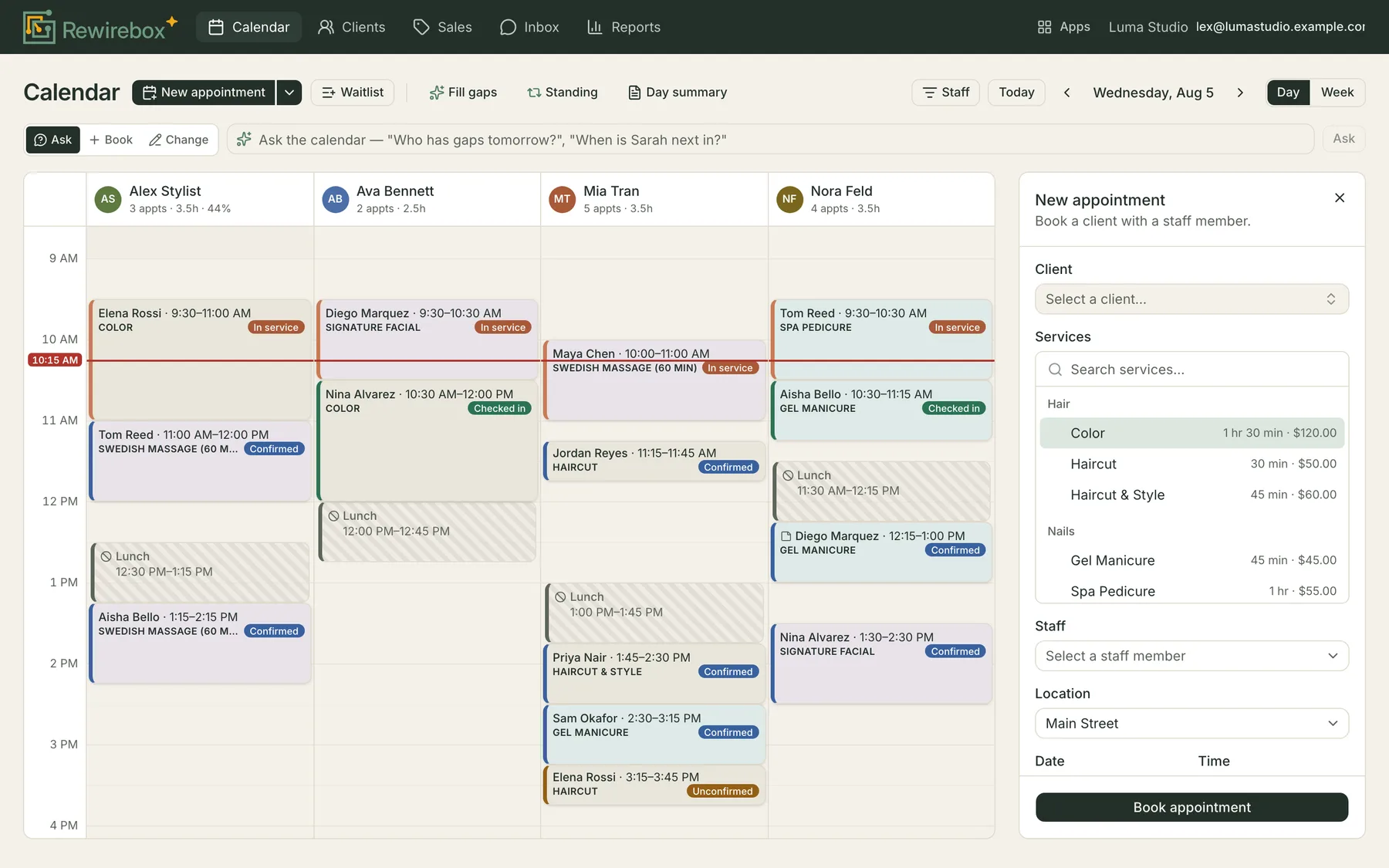
The booking panel opens beside the grid — the calendar stays visible behind it. - 2
Find the client. Start typing a name, email or phone number. If they're new, add them right here without leaving the calendar — you only need enough to identify them, and you can fill in the rest later.
- 3
Add the services. Pick from your service list. Each one shows its price and duration, and the appointment stretches on the grid as you add them. Multiple services run back to back.
- 4
Book it. The appointment appears on the grid as Unconfirmed, and the client's confirmation goes out — with a link where they can confirm the appointment themselves, which flips it to Confirmed on your calendar.

That's the whole flow. There's no separate "save then notify" step and no confirmation screen to click through.
Starting from the button instead
If you'd rather not hunt for a specific cell, the New appointment button in the toolbar opens the same panel with sensible defaults you can change. It's the same panel and the same result — just a different way in.
The small arrow next to that button holds the other two things you can put on the grid:

Block time reserves a stylist's time without it being a client appointment — lunch, a meeting, a training afternoon. Repeating appointment sets up a client who comes in on a rhythm. Both have their own guide: Blocking time and repeating appointments.
When the slot isn't perfect
Two things worth knowing:
If the time you picked falls outside that stylist's working hours, the panel tells you at the bottom before you commit. It doesn't stop you.
Common questions
Can I book a client outside a stylist's working hours?
Yes. You'll see a warning in the panel before you book, but it's a warning, not a wall. Real salons squeeze people in, and software that refuses to let you is software you end up working around.
Can one appointment have more than one service?
Yes. Add as many as you need and they run back to back, with the total duration and price adding up as you go.
Does the client get told automatically?
Yes — a confirmation goes out when you book, as long as that client has appointment messages switched on in their record. The message carries a link where they can confirm, reschedule or cancel themselves. If they're standing right in front of you, untick "Send the client a booking confirmation" before you book.
What if the client isn't in the system yet?
Create them without leaving the calendar. The client field lets you add someone new inline, so you're not abandoning a half-finished booking to go to the Clients screen.
Related articles
- Move, cancel, and check out an appointmentCalendar · Everything that happens to an appointment after it's booked — walking it through the day, moving it, cancelling it, and sending it to the till.
- Block out time and set up regularsCalendar · Holding a stylist's time for something that isn't a client, and putting the clients who come in on a rhythm onto that rhythm automatically.
- Add a clientClients · What you actually need to type to create someone, what you can leave for later, and the message settings that decide what they're allowed to be sent.
Can’t find what you’re looking for?
Book a 20-minute walkthrough and we’ll answer it on a screen share — or start free and try it on your own salon’s data.